


Fix crooked scans without rescanning. Rotate and realign pages online, then save a clean PDF you can read, share, and store anywhere. Fast and free.
A scanned PDF doesn’t have to be perfect to be usable. Still, even a slight tilt can make a document feel sloppy, especially if it’s a contract, a school form, or a multi-page report you need to review fast.
We’ll show you the quickest way to straighten a scanned PDF online for free using Smallpdf. Plus, learn what to do when rotation isn’t enough, your file won’t upload, or the PDF is locked.
Quick Steps To Straighten a Scanned PDF Page
- Open Edit PDF.
- Upload your scanned PDF from your device, Google Drive, Dropbox, or OneDrive.
- Rotate pages until text lines look straight and readable.
- Export your updated PDF and save it back to your device or cloud storage.
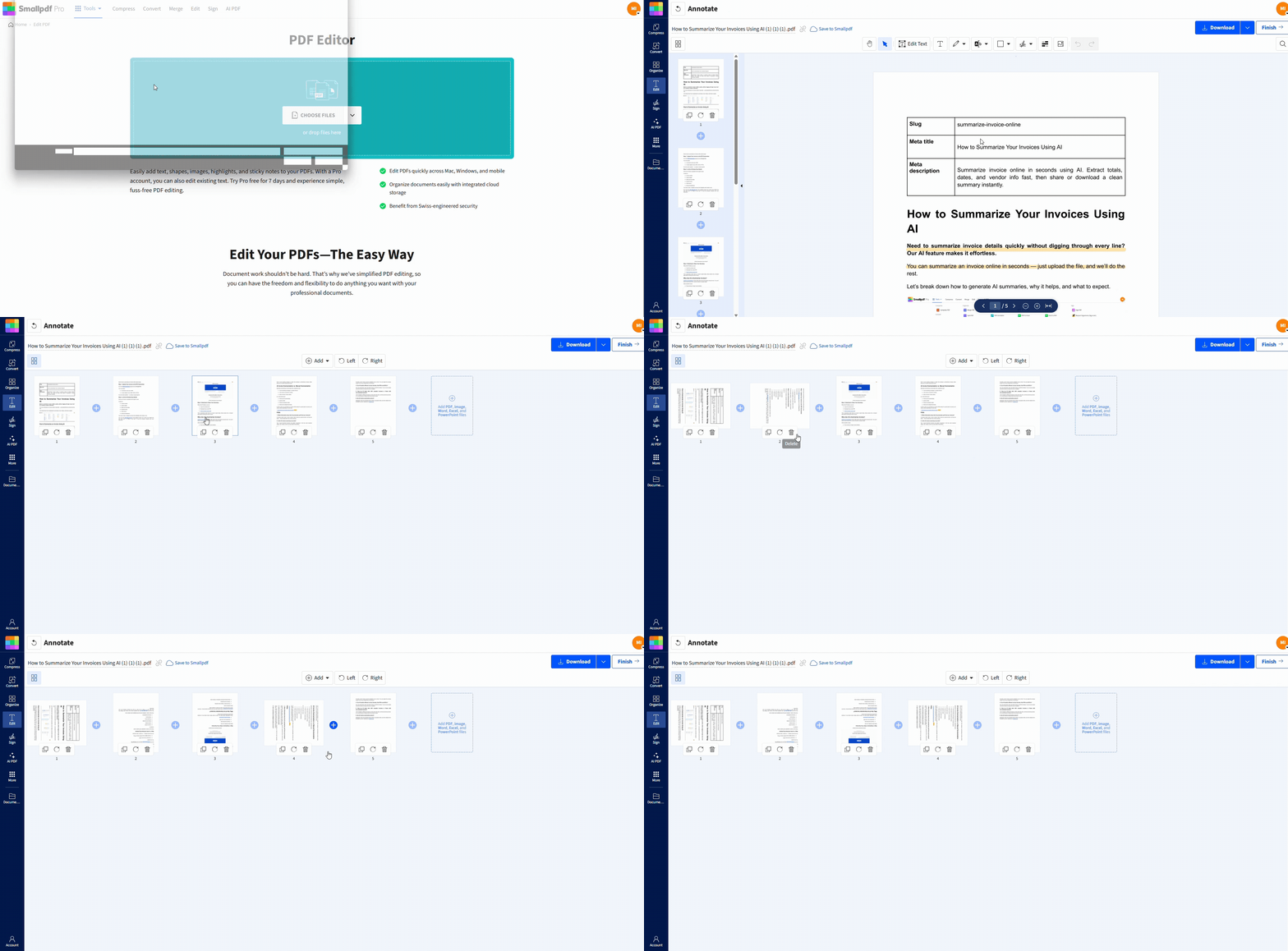
Straighten a scanned PDF online for free
Why Scanned PDFs Look Crooked
Most scanners and mobile scan apps do a decent job, but they can’t always correct angle issues on their own. Crooked pages usually happen because:
- The page wasn’t square on the scanner glass.
- An automatic feeder pulled the page slightly off-center.
- A bound page curved near the spine during scanning.
- The document was photographed at an angle, not straight-on.
There’s also an important detail people miss. Some files are not crooked, they’re just rotated the wrong way.
A sideways page needs a 90° rotation. A slightly tilted page needs a small alignment correction, which can be harder because it’s not a perfect right angle.
That’s why it helps to first confirm what kind of crooked you’re dealing with.
Rotate vs. Straighten: What’s the Best Move?
Before you start, decide which problem you have.
Rotation Fixes Orientation
You should rotate a scanned PDF when the page is sideways or upside down. A 90° or 180° turn solves it.
Straightening Fixes a Slight Tilt
Straightening is when the page is technically upright, but the lines of text slope slightly. If your scan is only a little off, rotating and re-saving can still improve readability, but it won’t always fully correct a minor tilt.
How To Straighten a Scanned PDF Online
This method is built for fast fixes, especially when you need a clean PDF right now, and rescanning isn’t an option.
Step 1: Open Edit PDF
Go to Edit PDF. If you’re on mobile, the same page works in Safari or Chrome.
Step 2: Upload Your Scanned PDF
Upload your file in the way that’s easiest for you:
- Drag and drop the PDF from your desktop.
- Upload from your device storage.
- Import from Google Drive, Dropbox, or OneDrive.
If the file is large, give it a moment to finish uploading before you start clicking around.
Step 3: Rotate Pages Until They Look Straight
Use the rotate controls to realign the page orientation.
- Rotate one page at a time, then check the text lines.
- If it’s a multi-page scan, click through each page quickly.
- Watch for mixed orientation, like one page scanned sideways in the middle.
A simple way to judge alignment is to look at long text lines near the top or bottom of the page. If the lines look level, you’re in good shape.
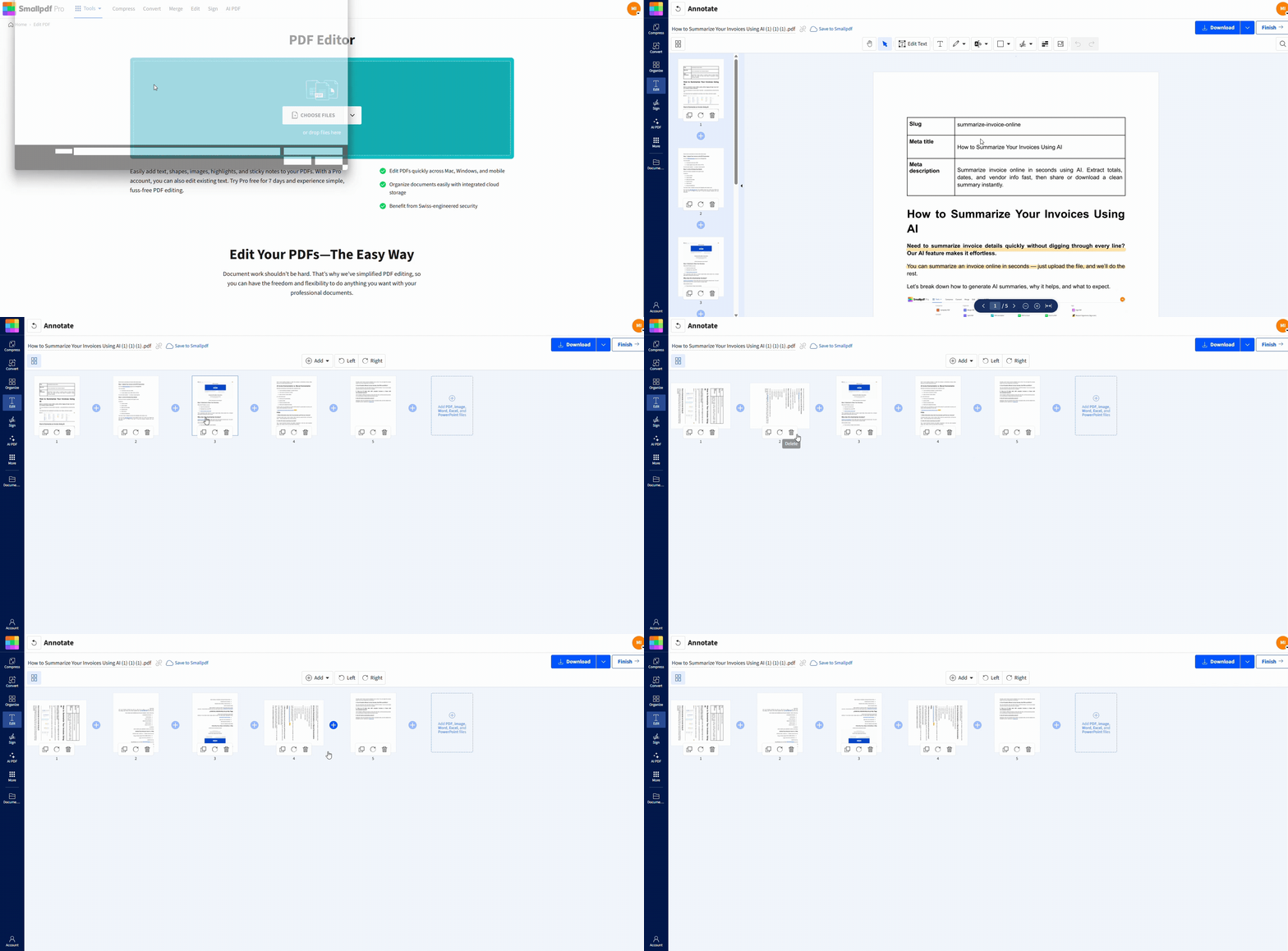
Straighten a scanned PDF online for free
Step 4: Export the Updated PDF
When you’re done:
- Export and download the corrected PDF to your device.
- Save it back to Google Drive, Dropbox, or OneDrive.
If you plan to share it, open the exported PDF once to confirm the pages stayed aligned.
How To Straighten a Scanned PDF on Mobile
Crooked scans are common on phones because you’re holding the camera by hand. You can still fix the result quickly.
Step 1: Open Edit PDF in Your Mobile Browser
Open Safari on iPhone or Chrome on Android, then open Edit PDF.
Step 2: Upload Your File
Most people upload from:
- Files (iPhone)
- Downloads or a file manager (Android)
- Google Drive, Dropbox, or OneDrive
Step 3: Rotate and Export
Rotate pages until they read cleanly, then export your updated PDF. After saving, re-open the file to confirm it looks right on your phone screen.
If you’re doing this often, the Smallpdf mobile app can make importing and saving faster, but the browser workflow works fine for most tasks.
Common Scenarios and the Fastest Fix
Here are a few real situations where straightening matters, plus the quickest approach.
Legal or HR Documents
You usually want clean readability and consistent page orientation.
- Rotate every page so headers and signature lines are level.
- Export a fresh copy and review it once before sending.
Receipts and Expense Reports
These scans are often sideways or upside down.
- Rotate to correct orientation.
- If the file is huge, compress it before sharing using [Compress PDF (https://smallpdf.com/compress-pdf "Compress PDF").
Multi-Page Scans With Mixed Page Angles
This happens with feeders and rushed scanning.
- Flip through each page and rotate as needed.
- Save the corrected PDF, then re-check page order and readability.
Troubleshooting If Straightening Doesn’t Work
Sometimes rotation isn’t enough, or the file refuses to cooperate. These fixes cover most stuck issues.
1. The Page Is Still Slightly Tilted After Rotation
If the page is only a few degrees off, rotation alone might not fully fix it. Try this:
- Export your rotated version first and see if readability is now acceptable.
- If the tilt still looks messy, the cleanest fix is often rescanning or re-capturing the page with better alignment.
If you’re scanning with a phone, re-capture the original using a scan app’s alignment guides, then export as PDF again. That usually produces a straighter base file than trying to force-correct a heavily skewed scan later.
2. My PDF Won’t Upload
This is usually one of three things: File size, connection issues, or browser problems. Try these steps:
- Refresh the page and upload again.
- Switch browsers if the upload stalls.
- Check your connection, especially on mobile data.
- If the PDF is very large, compress it first, then retry.
3. The PDF Is Password-Protected
If your scanned PDF is locked, you may not be able to edit or export changes until it’s unlocked.
- If you have authorization, use Unlock PDF to remove restrictions.
- Then return to Edit PDF and rotate pages normally.
4. The PDF Looks Fine on My Computer but Crooked on My Phone
Different viewers display scans slightly differently, especially if the PDF is image-heavy. Fixes that help:
- Open the PDF in a PDF Reader and compare.
- Export the corrected file again, then test it in a second viewer.
- If the scan is low resolution, rescanning at higher quality can improve how it renders across devices.
Only One Page Is Crooked in a Multi-Page PDF
This is common with feeders.
- Rotate just that page, not the entire file.
- Double-check nearby pages, since skew often happens in clusters.
Related Smallpdf Features That Help After Straightening
Once the pages are aligned, you may want to finish the workflow.
- Compress PDF to shrink a scan before emailing or uploading to a portal.
- PDF to Word if you need editable text, and the scan is readable enough for OCR.
- Protect PDF if you’re sending a confidential copy and need access control.
- PDF Reader to review the final layout before you share it.
These are simple add-ons that help you go from a fixed scan to ready to send.
Straighten Your Scan, Then Save a Clean Copy
A crooked scan doesn’t mean you have to start over. Rotate the pages, check alignment across the document, and export a clean PDF you can read and share without distractions.
If rotation still leaves the page slightly tilted, re-capturing the original scan with better alignment is often the fastest path to a truly straight result.
If you’re processing large batches or need advanced features, consider a free trial to Smallpdf Pro for unlimited access and priority processing.
Frequently Asked Questions
How do I fix the alignment on a PDF?
If the page is sideways or upside down, rotate it and export a corrected copy. For slight tilts, rotation can still help, but a cleaner scan is sometimes the best fix.
What if straightening doesn’t work and the page is still crooked?
That usually means the scan is skewed by a small angle that rotation can’t fully correct. Re-scan the page with better alignment or use a scan app that corrects skew during capture.
Can I straighten a PDF on my phone?
Yes. Open Edit PDF in your mobile browser, upload the file, rotate pages, then export the updated PDF.
Why won’t my PDF upload?
Most upload issues come from file size, weak connection, or an outdated browser. Refresh, try another browser, or compress the PDF first.
How do I realign pages in a multi-page scanned PDF?
Rotate pages one by one, especially if the scan includes mixed orientation. Export the file and review it once after saving.
Do I need to rescan to fix crooked pages?
Not always. If the issue is orientation, rotation is usually enough. If the scan is heavily tilted, rescanning often produces a cleaner result.



