Shrink PNG files fast for web, email, or storage. Convert to smaller JPG when you don’t need transparency, with secure processing and quick downloads.
Large PNG files can slow down websites, block email attachments, or fail uploads altogether. The good news is you can shrink them online in minutes without sacrificing visual quality.
PNG images are often heavy because they store transparency data, sharp edges, and extra metadata.
In this guide, we’ll show you the fastest Smallpdf workflow, explain when converting PNG to JPG makes sense, and cover options for compressing PNGs when transparency must stay intact.
Quick Steps to Compress Image PNG Online
- Upload your PNG to Compress PDF.
- Pick Basic (or Strong if you need more reduction).
- Click “Export As” > “Image (.jpg).”
- Download your smaller image and keep moving.
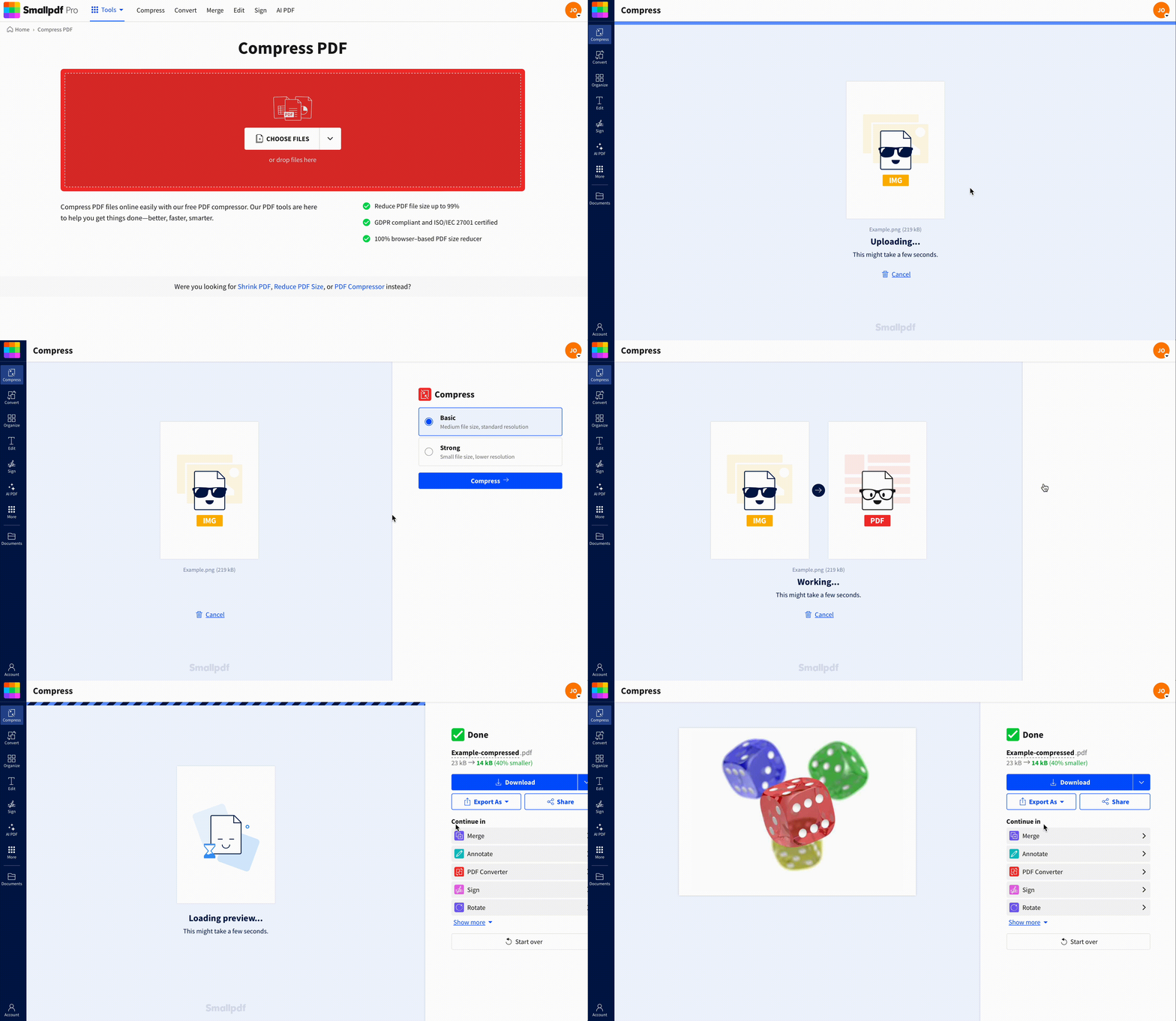
Compress image PNG online in just a few seconds
How to Compress PNG Images Online With Smallpdf
Our current workflow compresses PNG images by converting them to a PDF, compressing that PDF, then exporting the result as a JPG. That extra step sounds odd until you try it. It’s quick, and JPG usually gives you the biggest file-size drop.
Step 1: Upload Your PNG
Open Compress PDF and drag your PNG into the upload area. You can also import from your device, Google Drive, Dropbox, or OneDrive.
Step 2: Choose Your Compression Level
Pick “Basic compression” for most everyday images. If you need the smallest possible result, choose Strong when it’s available to you (for example, during a Pro trial).
Step 3: Export as a Smaller Image
On the results page, click “Export As” > “Image (.jpg).” Then download your new file.
This gives you a smaller image that’s easier to upload, send, and store, especially when transparency is not required.
When This PNG > JPG Workflow Makes Sense
Converting PNG to JPG usually works best for:
- Photos and screenshots that don’t need transparent backgrounds
- Product images where you want faster page loads
- Attachments that keep hitting email size limits
- Web uploads with strict file caps
If your PNG is a logo with transparency, jump to the section on keeping PNG format before you export.
How to Compress PNG Without Converting to JPG
If you need to keep PNG format, you’re usually protecting one thing: Transparency. JPG doesn’t support transparent backgrounds, so exporting as JPG will flatten that transparency into a solid background.
Here are practical options when you must keep PNG:
- Resize dimensions first. If your PNG is 4000 px wide but you only need 1200 px, resizing often cuts the file dramatically with no visible downside.
- Remove extra metadata. Some PNGs carry non-visual data that adds weight.
- Use lossless PNG optimization. A dedicated PNG optimizer can reduce size while keeping the PNG format and transparency intact.
We’re also aware that many users want direct PNG-to-PNG compression. Our current primary workflow focuses on maximum reduction via JPG export, because that’s what most size-limit situations demand.
Why PNG Files Get So Large
PNG is built for quality and precision. It keeps sharp edges clean and supports transparency, which is perfect for logos, UI elements, and graphics. That extra capability often comes with extra bytes.
Common reasons your PNG is huge:
- Large dimensions. A high pixel count drives size more than most people expect.
- Transparency and alpha data. Helpful for design, expensive for storage.
- Too much detail. Complex images need more information to stay crisp.
- Saved for print. Print-ready assets are often larger than web needs.
If your goal is a smaller file for sharing or uploading, JPG conversion is often the cleanest fix.
Does Compressing PNG Reduce Image Quality?
It depends on the method.
- Lossless PNG optimization tries to reduce size without changing visible pixels.
- PNG to JPG conversion usually reduces size by discarding some visual data. It can still look great, but it’s not truly lossless.
In the Smallpdf workflow, the final file is typically a JPG, which means you’ll get a smaller file and a visually similar result for most images. If you’re compressing a UI asset or a logo, test the output at 100% zoom before you ship it.
Get Better Results With These PNG Compression Tips
If your PNG still feels too big, these tweaks help before you upload.
- Crop empty space. Extra transparent padding still costs file size.
- Use the right source. If you can export a smaller PNG from the original design file, do that first.
- Avoid unnecessary color depth. Some exports keep more color information than you need.
- Pick JPG for photos. Photos almost always compress better as JPG than PNG.
Small changes at the source usually beat heavy compression later.
Why Choose Smallpdf to Compress Image PNG
A lot of online compressors do one thing and stop there. We built Smallpdf for the whole workflow, so you can fix the file and then keep working.
Here’s what you get in one place:
- A fast, browser-based experience that works on most devices.
- A simple export flow that turns large PNGs into smaller images quickly.
- A full suite of document features, so you can convert, compress, and organize files in one workspace.
If you’re compressing images for a report, a form submission, or a PDF pack you’re about to send, it’s nice not to bounce between five different websites.
Security and Privacy When You Compress Image PNG Online
When you upload files to Smallpdf, transfers are protected with SSL/TLS encryption, and files are automatically deleted after about one hour. That gives you time to download, then clears the file from our servers.
Fix Common PNG Compression Issues
1. PNG Needs Transparency
Don’t export to JPG if transparency is required. Use a PNG-preserving approach like resizing and lossless PNG optimization, then re-check the background on your final use case.
2. The File Is Smaller, but Looks Soft
That’s a sign the image didn’t have much room for compression, or the conversion was too aggressive for your content. Try resizing first, then compress again.
3. PNG Is a Logo and It Looks Fuzzy
Logos are where PNG shines. Keep PNG format if you can. If you must use JPG, export at a slightly larger size and reduce carefully until it still looks sharp.
4. I Need the Smallest Possible File for Upload Limits
Start with resizing, then run the Smallpdf workflow and export as JPG. This combo usually beats compression alone.
Start Compressing PNG Images in Seconds
If you just need a smaller file fast, use the Smallpdf workflow and export as JPG. If you need transparency, keep PNG and optimize it with a PNG-preserving method first, then confirm the result against your real use case.
Compressing PNGs is just one of many ways Smallpdf can help streamline your document workflow. Ready to explore our full suite of tools? Start your free trial today and discover how easy document management can be.
Frequently Asked Questions
How do I reduce the size of a PNG file?
Resize the image to the dimensions you actually need, remove unnecessary metadata, and use compression. If transparency isn’t required, converting to JPG often delivers the biggest savings.
Can a PNG file be compressed?
Yes. You can compress it with lossless PNG optimization or reduce size by converting it to a different format like JPG.
How can I compress image PNG online with Smallpdf?
Upload your PNG to Compress PDF, choose a compression level, then click “Export As” > “Image (.jpg)” to download a smaller image.
Does compression reduce PNG quality?
Lossless PNG compression aims to keep the quality the same. Converting to JPG can reduce quality slightly, but it’s often not noticeable for photos and screenshots.
Why is my PNG file size so big?
PNG supports transparency and sharp edges, which can increase file size. Large dimensions and high detail also push sizes up quickly.
Is it safe to compress PNG images online?
Smallpdf uses encrypted file transfers and automatic deletion after about one hour, which helps protect your files during processing.